
The complete Questwright documentation
All 12 guides on one page · Last updated Jul 12, 2026
Getting started
Questwright compiles quests written as simple text files into playable MetaHuman dialogue scenes, with voice-over, lip-sync, staging, cameras, objectives and journal included. This guide takes you from a fresh install to a talking NPC.
Requirements
| Requirement | Value |
|---|---|
| Unreal Engine | 5.6 – 5.8 |
| Lip-sync baking | MetaHuman plugin + DX12 (optional; see below) |
| Characters | MetaHumans for the full facial showcase; any skeletal-mesh character otherwise |
| Voice-over | Optional: free local TTS server, ElevenLabs (your key), or your own WAV files |
| Project type | C++ or Blueprint-only |
Two things are worth understanding before you start:
- MetaHumans are optional. Dialogue, quests, staging, cameras, the journal and saving work with any skeletal-mesh character. The MetaHuman pipeline only powers baked lip-sync and the layered facial animation; without it the build degrades gracefully to a neutral face.
- Nothing is bundled, nothing phones home. Voice synthesis and machine translation use your own services and keys; with your own WAV files the plugin runs fully offline.
Install from Fab
- Open the Questwright product page on Fab and add it to your library.
- In the Epic Games Launcher, find it under Library → Fab Library and click Install to Engine.
- Open your project, go to Edit → Plugins, search for Questwright, tick Enabled and restart the editor.
For source builds or CI, enable it in the .uproject instead:
{
  "Plugins": [
    { "Name": "Questwright", "Enabled": true }
  ]
}
One-click project setup
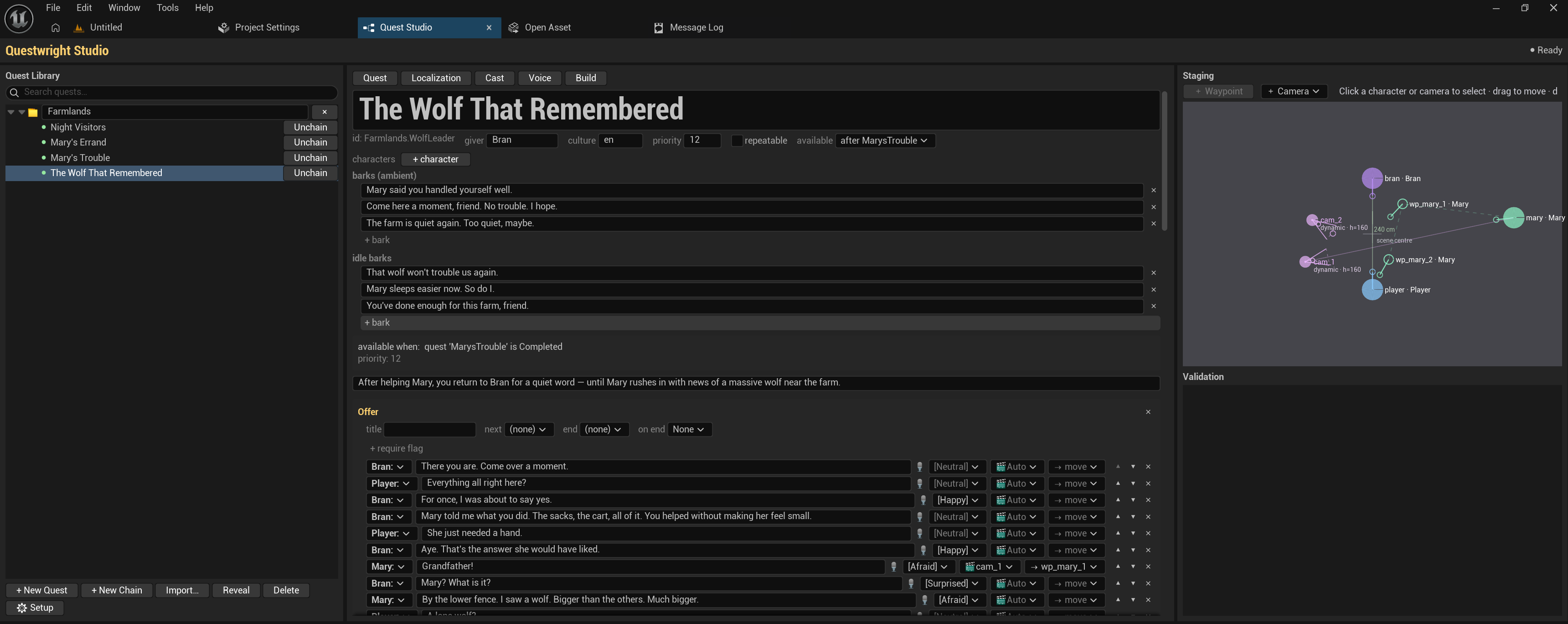
Open Tools → Quest Studio. The Studio is the single window that drives everything; the rest of the docs tour it in detail.
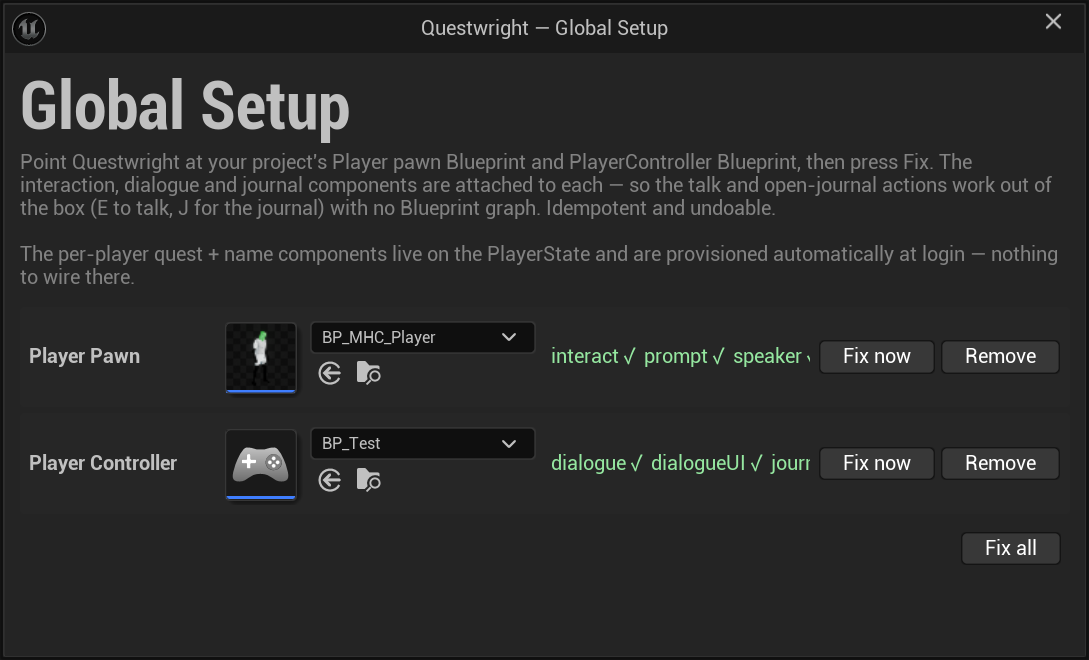
Click the Global Setup gear icon in the library bar. It wires your Player pawn and PlayerController Blueprints with the required Questwright components: interaction, dialogue client, quest HUD. One click, idempotent, reversible.
Cast your characters
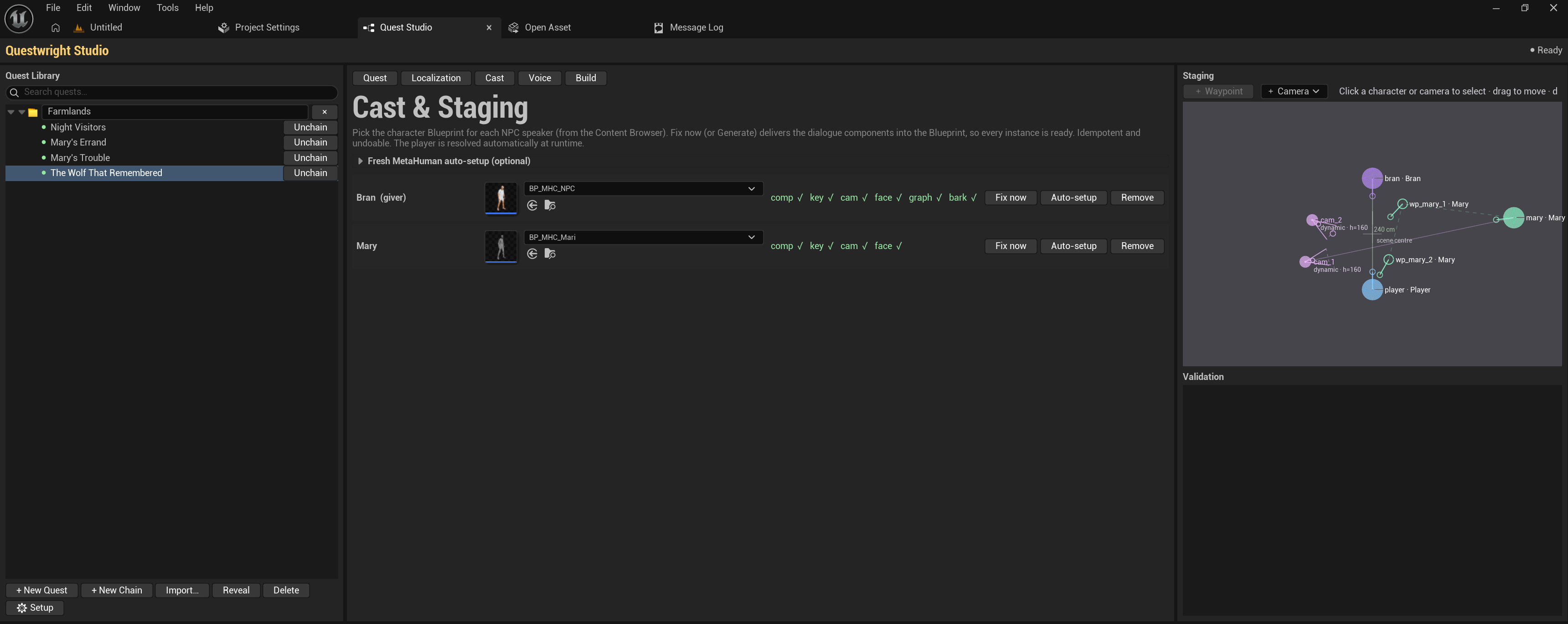
Open the Cast tab and pick a character Blueprint for each NPC speaker (drag one in or use the picker), then mark which entry is the Player. The health-check column shows what each character is missing; Fix now delivers the components immediately (the Build stage would also do it automatically).
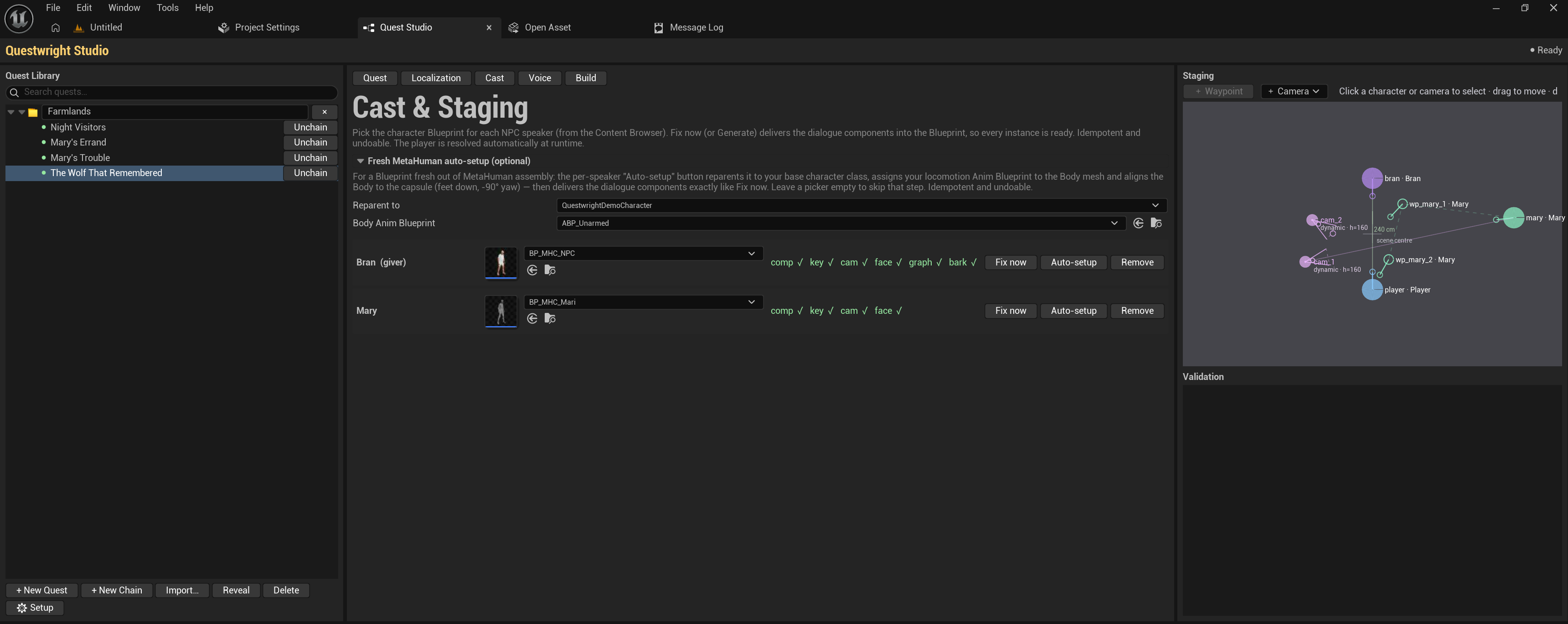
For a Blueprint fresh out of MetaHuman assembly there is an optional Fresh MetaHuman auto-setup section: pick your base character class and locomotion Animation Blueprint once, then the per-speaker Auto-setup button reparents the Blueprint, assigns the Anim Blueprint to the Body mesh, aligns the mesh to the capsule and delivers the dialogue components. The whole by-hand ritual, done in one click.
Build and play
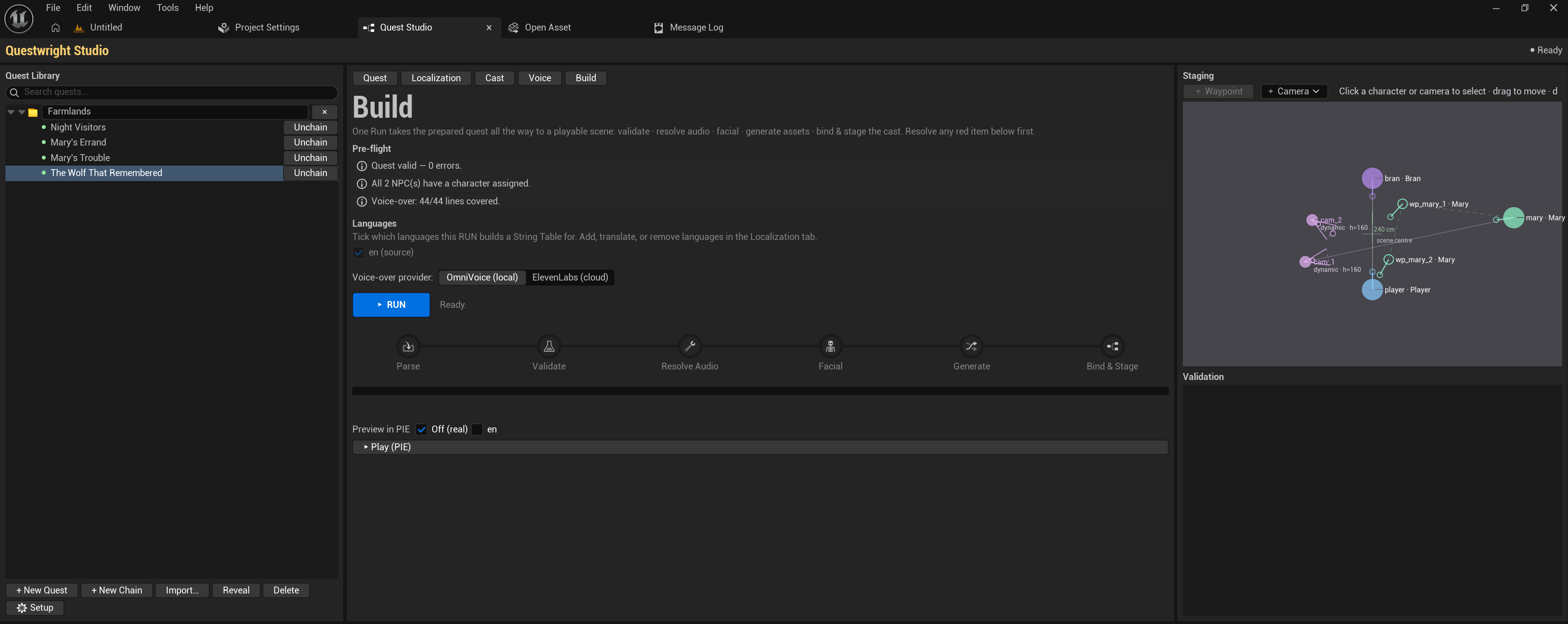
Open the Build tab and press RUN. The pipeline compiles the quest:
parse → validate → voice-over → facial animation → asset generation → bind & stageA live stage tracker shows progress; errors appear in the pre-flight checklist above the RUN button, each with a Fix → shortcut that jumps to the right tab.
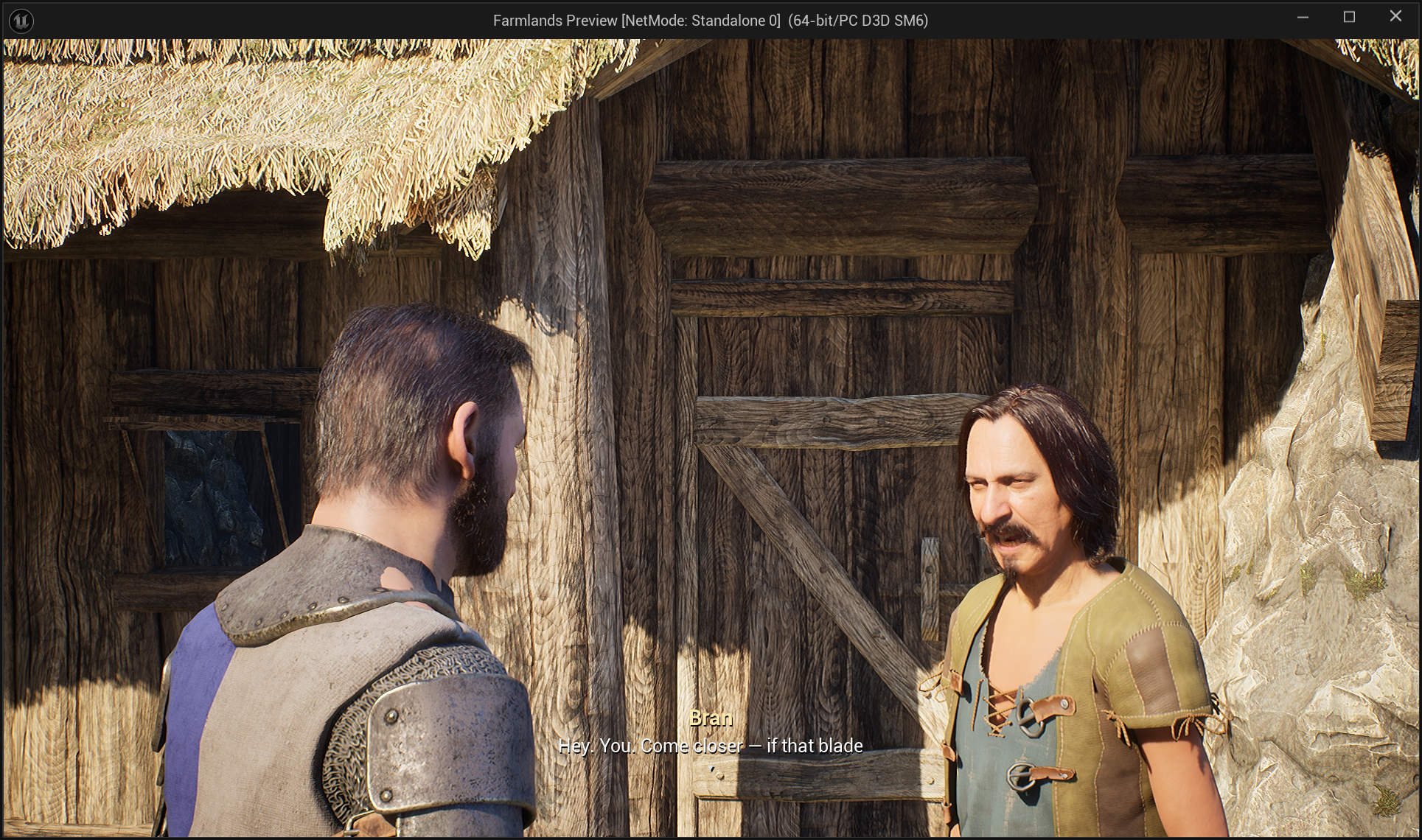
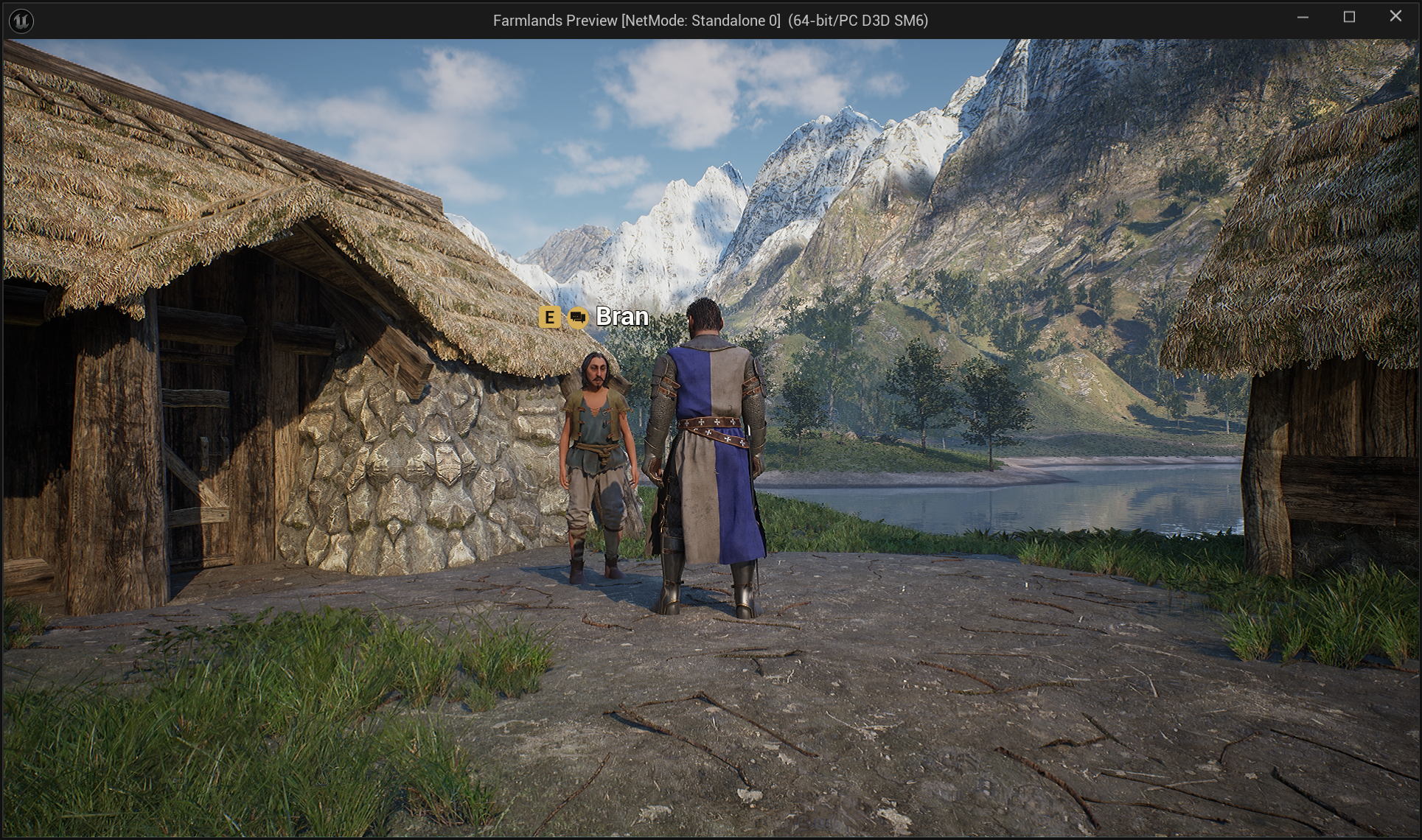
Press Play (PIE) and talk to the NPC.
All generated content is written into your project under /Game/Questwright/Generated/. The
plugin’s own content folder stays clean, and the shipped demo quest can be deleted without
breaking anything.
Where to go next
- The Quest Studio: a tour of every tab.
- Writing quests: the
.quest.yamlformat. - Settings reference: every project setting explained.
- Prefer reading offline? The complete documentation is downloadable as a single printable page or a Markdown bundle.
The Quest Studio
One dockable window (Tools → Quest Studio) drives the whole pipeline. This page tours each zone; the linked guides go deeper on the workflows behind them.
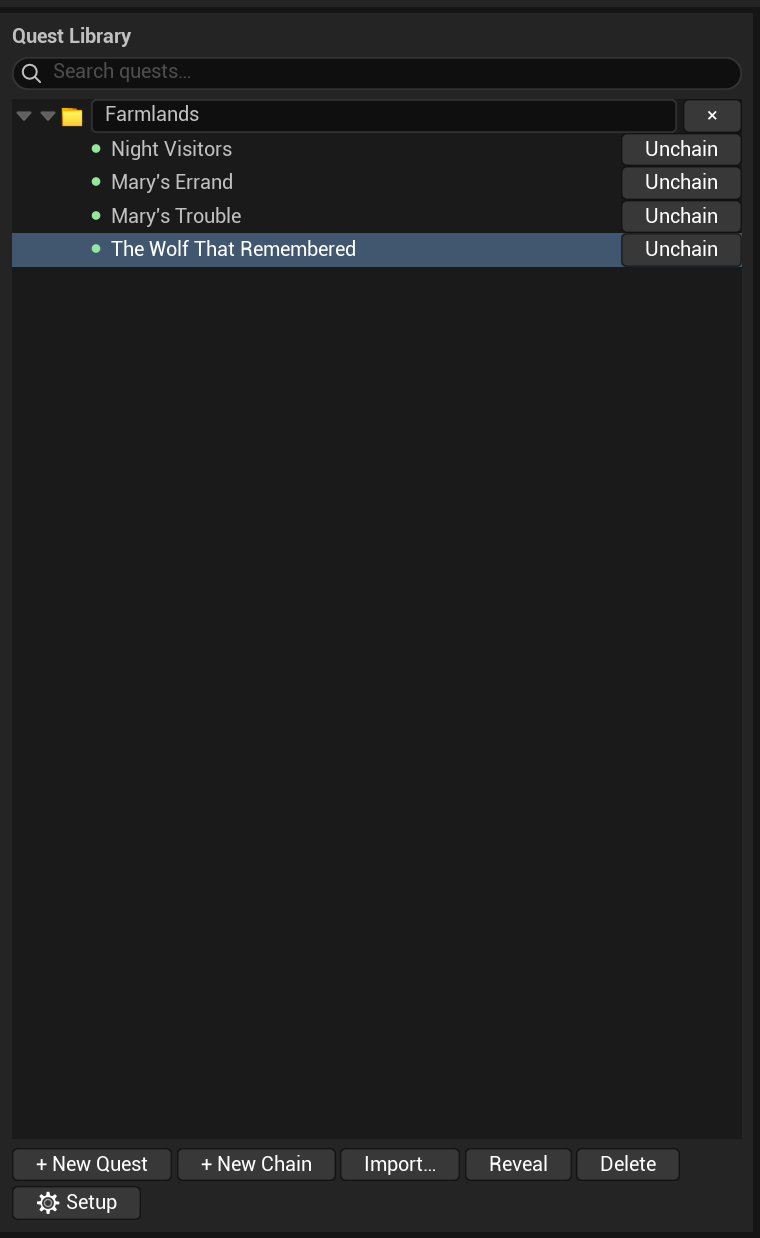
Library
The left column lists every *.quest.yaml found in your project (Content/Quests/ by
default; files appear automatically, no import step). Each quest shows a status badge:
| Badge | Meaning |
|---|---|
| Generated & valid | Assets are up to date with the file |
| Changed | The file changed since the last build; just RUN again |
| Validation errors | The file has errors; open the quest to see findings with jump-to-source |
| Not built | Never compiled yet |
+ New Quest creates a file from a template. New Chain groups quests into a story
chain: drag quests into the chain folder to order them. Chains are pure data: dragging writes
available_when / priority into the YAML itself; there is no hidden manifest to corrupt.
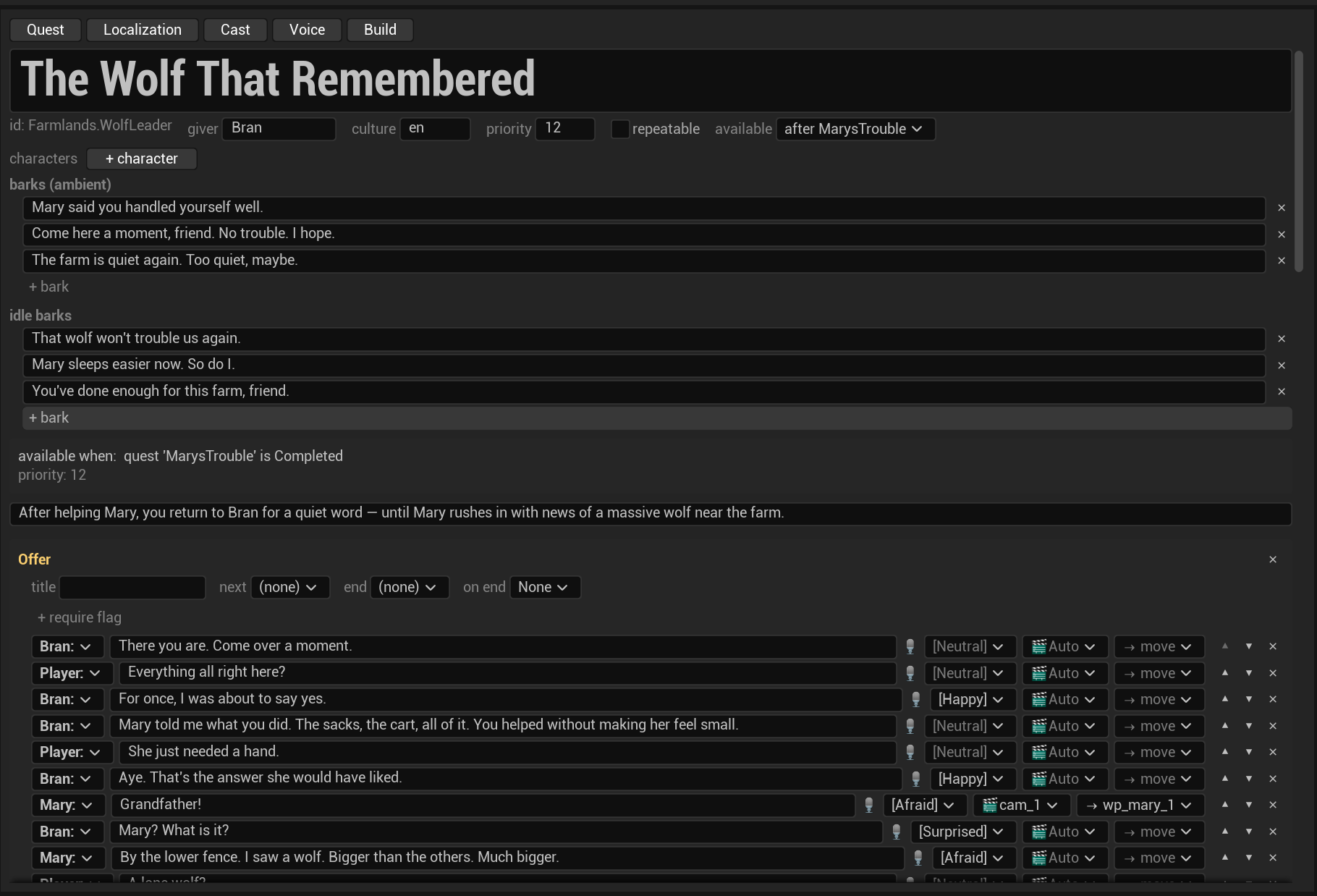
Quest tab: the constructor
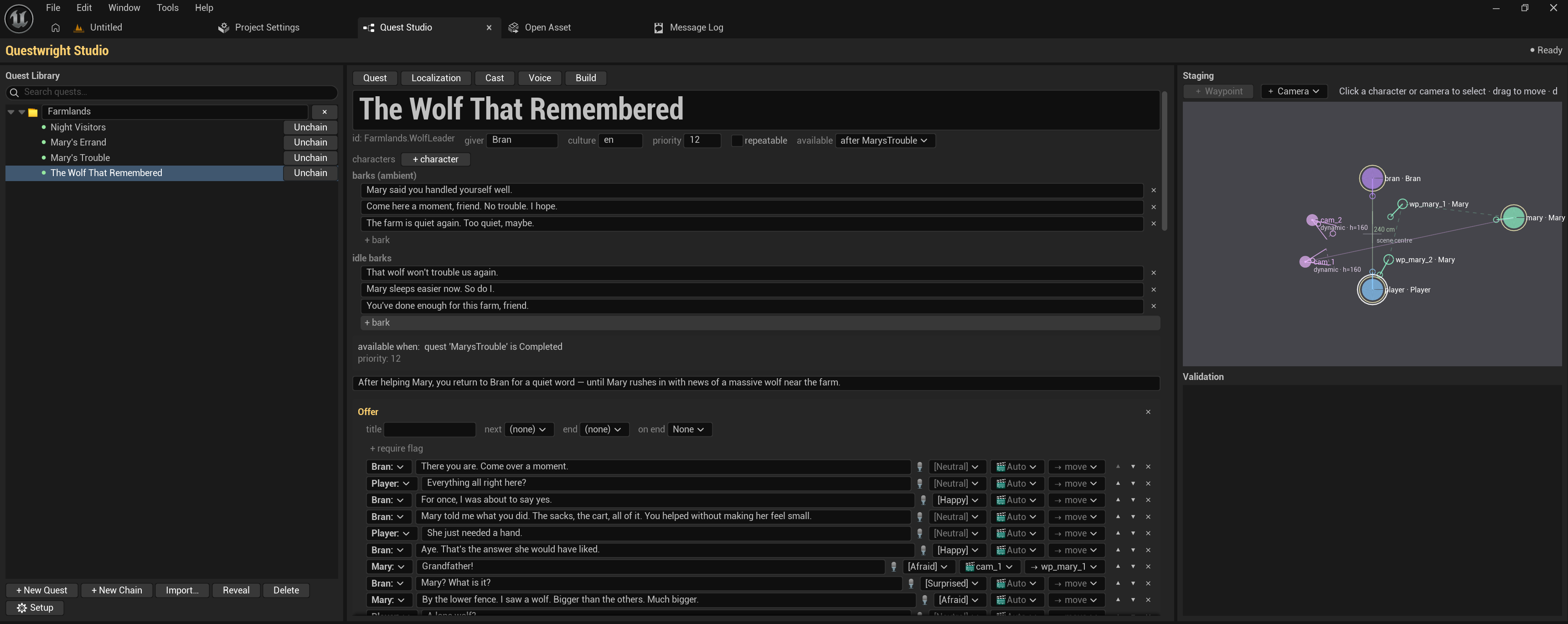
The full quest is editable in place: scenes, lines, choices, emotions, shots, step wiring, effects, conditions, rewards and barks, with the chain/prerequisite info shown on the quest card. Everything the constructor writes is plain YAML, so hand-editing the file in a text editor is always equivalent, and the two stay in sync.
Staging canvas
The right zone hosts a top-down canvas for placing the participants of a scene: drag marks to position characters, rotate them, add spawned extras (appears already placed vs walks in), add waypoints for mid-dialogue movement, and place custom cameras with a live frustum preview. Put the cursor in a dialogue line and the canvas highlights who stands where at that moment. Details in Staging & cameras.
Cast tab
Maps each speaker key to a character Blueprint and marks the Player. The bind stage adds the Questwright components to your Blueprints idempotently; Remove Questwright components reverts a character to its clean state. The Fresh MetaHuman auto-setup section turns a Blueprint fresh out of MetaHuman assembly into a dialogue-ready character in one click (see Getting started).
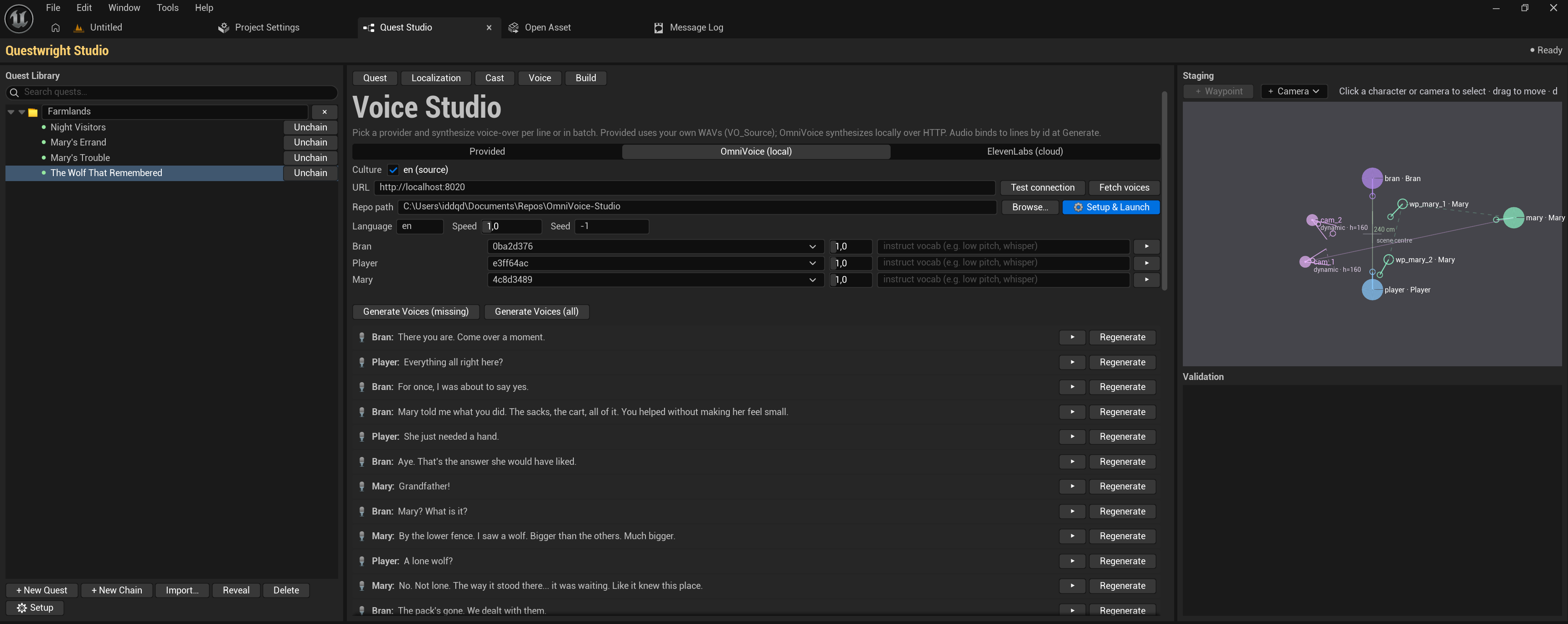
Voice tab
Pick a TTS provider per project, assign a voice per speaker and per language, audition single lines or batch-synthesize, or drop in your own WAV files. Details in Voice-over.
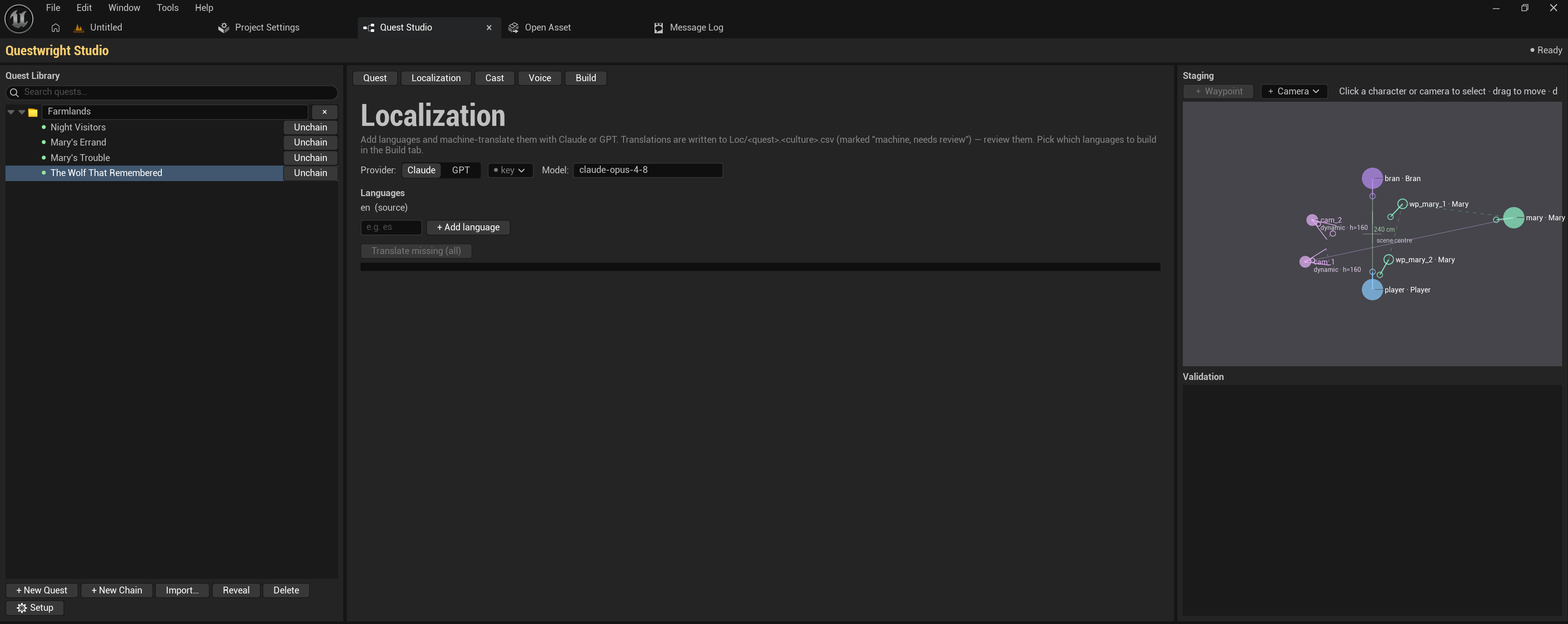
Localization tab
Add languages, see translation coverage per quest, and machine-translate missing lines with your own Claude or OpenAI key (results are marked “machine, needs review”). Details in Localization.
Build tab
The pre-flight checklist (every error has a Fix → shortcut to the right tab), language checkboxes, the RUN button, a live stage tracker, Play (PIE) and Show Assets.
Builds are idempotent: already-voiced lines are skipped, changed lines are re-synthesized and re-baked, and assets belonging to deleted lines or steps are pruned automatically.
Writing quests
A quest is one .quest.yaml file. The file is the source of truth: the Studio compiles it
into assets, and the Quest tab is a view of it, so hand-editing and constructor-editing are
always equivalent. This page walks through the format; the complete field-by-field reference
(also written to double as an AI prompt) is available as a
download.
Where files live
Put quests in <Project>/Content/Quests/; they appear in the Studio library automatically.
Name them <Name>.quest.yaml, one quest per file.
Minimal skeleton
quest: Region.MyQuest          # unique id/slug (required)
name: "My Quest"
giver: Bran                    # speaker key of the NPC who gives it
source_culture: en
steps:                         # required, at least 1
  - id: MyQuest_Offer
    scene:
      speakers: [Bran, Player]
      lines:
        - { by: Bran,   id: greet, text: "Hello.", emotion: neutral }
        - { by: Player, id: hi,    text: "Hi." }
      choices:
        - { id: accept, text: "I'll help.", goto: MyQuest_Do }
      on_end: { quest: accept }
  - id: MyQuest_Do
    end: completed
The golden rules
- Stable lowercase ids on every line, choice and objective. Ids key localization and the generated voice/face assets; inserting content must never renumber existing ids.
- Only use documented fields, emotions, shots, condition kinds and effect verbs. The validator catches anything out of contract, with jump-to-source on every finding.
- Every GameplayTag value must be registered in your project (native C++ or
DefaultGameplayTags.ini). An unregistered tag fails silently, which is the #1 cause of “my objective never counts”. See Objectives & progression.
Steps
A step is one node of the quest: a dialogue scene, a trackable objective, or a terminal marker.
| Field | Purpose |
|---|---|
id | Required, stable. Auto-namespaced to <ShortQuest>_<id>. |
scene | A dialogue scene (lines + choices) |
objective | A trackable goal: kill / collect / reach / talk / deliver |
next | Default transition to the next step (when the scene has no choices) |
end | Terminal marker: completed, declined or failed |
require | Entry gate, e.g. gate the turn-in step on the objective being complete |
Scenes: lines and choices
scene:
  speakers: [Bran, Mira, Player]   # every speaker key present in this scene
  lines:
    - { by: Bran,   id: greet, text: "Come here.", emotion: worried, shot: cu }
    - { by: Mira,   id: warn,  text: "Don't trust him.", to: Player }
    - { by: Player, id: what,  text: "What's wrong?" }
  choices:
    - { id: help,   text: "I'll help.",      goto: MyQuest_Accept }
    - { id: refuse, text: "Not my problem.", goto: MyQuest_Refuse }
  on_end: { quest: accept }
A scene supports any number of speakers: list every key in speakers and set each line’s
by. At runtime each key binds to an actor already placed in the level; if none is present,
one is spawned from the speaker map written by the Cast stage and staged beside the
giver. Spawned characters are removed automatically when the dialogue ends.
Useful line fields:
to:names who the line is addressed to; drives over-the-shoulder framing and head-turn in scenes with 3+ speakers.emotion:is one ofneutral,happy,sad,angry,afraid,surprised(plus aliases likeworried→afraid). Drives the additive facial mood and the VO tone.shot:takesauto(default; the compiler frames the scene),wide,ots,cu,reaction, or the id of a custom camera mark (see Staging & cameras).echo_of:marks a line that repeats a choice’s text; give the choice’s id so they share one localization key.
Choices can gate and grant GameplayTags: require: makes a choice available only if the player
owns the tag(s), grant: awards tags when picked.
Dynamic text
Text supports {PlayerName} and custom {Token} placeholders, substituted at display time in
a localization-safe way. See
Runtime integration for setting token values from
your game.
Authoring with an AI assistant
The fastest way is the ready-made
Questwright Quest Builder
GPT: it already knows the format, so just describe your premise (“a lighthouse keeper asks the
player to find his missing brother”) and it answers with a complete .quest.yaml.
Prefer another assistant? The full format reference is deliberately self-contained: paste
the reference file into ChatGPT or Claude
together with your premise and ask for a .quest.yaml.
Either way, drop the result into Content/Quests/; the validator catches anything out of
contract before it ever reaches a build.
Objectives & progression
Everything between “accept” and “turn in” is described here: how objectives are credited, how conditions gate content, how effects mutate state, and how quests link into chains.
Objectives
A trackable goal lives inside a step. The step uses a generic id (Goal, Deliver), while
the concrete kind lives in objective.type, so you can change the kind without re-keying anything:
- id: Goal
  objective:
    type: Kill
    target: MyGame.Enemy.Wolf         # GameplayTag, MUST be registered
    count: 3
    location: MyGame.Area.Farm        # optional area gate
    desc: "Kill the wolves near the farm"
next: Deliver| Type | Meaning | How it’s credited |
|---|---|---|
Kill | kill N tagged enemies | your death code reports a Kill event |
Collect | gather N tagged items | your pickup code reports a Collect event |
Reach | reach a tagged place | a Reach event, or CompleteObjective from a trigger |
TalkTo | talk to someone | automatic: starting a conversation credits it |
Deliver | report back to the giver | satisfied by the turn-in act itself |
Custom | anything else | your game reports Custom + your own tag |
Two notable conveniences:
TalkTotargets a speaker key, not a tag (target: Mary, the same key used inspeakers:and the Cast tab). Any conversation with that NPC credits the objective for the talking player only, and only while the objective is active, so talking to the NPC before accepting the quest correctly credits nothing.Delivernever blocks the turn-in. It exists so the tracker shows a “report back” line, and it is auto-ticked when the quest is turned in.
Crediting from your game is one call (Blueprint or C++), server-authoritative and idempotent
per EventSourceId:
Comp->ReportObjectiveEvent(Instigator, EQuestwrightObjectiveEventType::Kill,
                           MatchTags, LocationTags, EventSourceId);
Tag matching is hierarchical: an objective with target: Enemy.Wolf is credited by an
event tagged Enemy.Wolf.Alpha, so there is no need to list every subtype.
GameplayTags: the one critical rule
Every target, location, choice require/grant, condition tag and effect grant_tag
value is a GameplayTag that must already be registered in your project; otherwise it
resolves to an invalid tag and is silently ignored. This is the #1 cause of “my objective
never counts”. Register tags either way:
- Native C++ (preferred for shipped tags):
UE_DEFINE_GAMEPLAY_TAG_COMMENT(...). - Project Settings → Project → GameplayTags (writes
Config/DefaultGameplayTags.ini).
Use a dotted hierarchy (MyGame.Enemy.Wolf, MyGame.Area.Farm) so hierarchical matching works
for free. The only exception: a TalkTo target is a speaker key, not a tag.
Conditions
Conditions gate quest availability (available_when) and step entry (require). Atomic kinds:
| Form | Meaning |
|---|---|
{ quest: <QuestId>, state: <state> } | another quest is in a state (available, active, completed, failed, declined) |
{ objective: <ObjId>, state: <state> } | an objective is active / complete / failed / inactive |
{ flag: <Name>, equals: <Value> } | a per-playthrough quest variable equals a value |
{ tag: <GameplayTag> } | the player owns a gameplay tag |
{ item: <ItemId>, min: <N> } | inventory has ≥ N of an item (via your inventory provider) |
{ attribute: <AttrId>, min: <N> } | a stat is ≥ N (via your stat provider) |
Composites: { all: [...] } (AND), { any: [...] } (OR), { not: <cond> }.
available_when:
  all:
    - { quest: Region.Intro, state: completed }
    - { not: { flag: Betrayed, equals: "true" } }
Effects (on_end:)
Applied when a scene exits:
on_end:
  quest: accept                     # accept | complete | decline | fail | turnin
  set: { RewardTier: Negotiated }   # write flags, read back by flag conditions
  grant_tag: Region.MetBran         # grant gameplay tag(s) to the player
  grant_quest: Region.FollowUp      # auto-accept follow-up quest(s)
A turn-in scene typically ends with on_end: { quest: turnin } plus end: completed.
Branching on player choices
To make the giver react to an earlier choice, set a flag when the choice happens, then author
two turn-in steps: the flag-gated one first, the catch-all last. The giver routing picks
the first turn-in whose require passes:
- id: Haggle
  scene: { ... }
  on_end: { quest: accept, set: { RewardTier: Negotiated } }

- id: DeliverHaggled                       # specific branch; keep it before the catch-all
  require:
    all:
      - { objective: Goal, state: complete }
      - { flag: RewardTier, equals: Negotiated }
  scene: { ... }
  on_end: { quest: turnin }
  end: completed

- id: Deliver                              # default branch, carries the tracked objective
  require: { objective: Goal, state: complete }
  objective: { type: Deliver, count: 1, desc: "Report back" }
  scene: { ... }
  on_end: { quest: turnin }
  end: completed
The shipped demo quest uses exactly this pattern (a haggle leads to a different pay-out scene).
Quest chains
A chain is just data; there is no separate asset:
- Quest B’s
available_when: { quest: A, state: completed }(prerequisite), and/or - Quest A’s
on_end: { grant_quest: B }(auto-accept the follow-up).
priority orders multiple quests offered by one giver (higher first). The Studio’s New
Chain UI writes these values for you by drag & drop; hand-authoring is equivalent. Validation
catches chain cycles and dangling quest/objective references.
Barks
Ambient barks (barks:) play over the giver’s head on a randomized timer; idle barks
(idle_barks:) play on interact when the giver has nothing left to offer. Both go through the
same voice-over and face pipeline in the giver’s voice:
barks:
  interval: [8, 16]
  lines:
    - "Wolves howling again..."
    - { text: "After dark, nobody sets foot in the yard.", weight: 2 }

idle_barks:
  lines:
    - "Rest easy. The farm's safe, thanks to you."
Rewards
rewards:
  base:
    currency: 20
    xp: 50
    items:
- { def: SmokedMeat, count: 1 }currency, xp and items are recorded on turn-in; your game grants the actual goods through
the inventory provider seam (see Runtime integration).
Staging & cameras
Without any staging, Questwright simply places every speaker facing their interlocutor and frames the scene automatically; many quests never need more. Staging is for multi-NPC blocking, spawned extras, mid-dialogue movement and hand-placed cameras.
The staging canvas
The Studio’s right zone is a top-down canvas of the scene around its anchor (a placed dialogue marker, or the giver’s own transform if you don’t place one). Drag marks to position characters, rotate them, add waypoints, and place cameras. Put the cursor in a dialogue line and the canvas highlights who stands where at that moment: occupancy is tracked line-by-line across the whole scene.
Everything the canvas edits is written to the quest file’s staging: block. As with the rest
of the Studio, hand-authoring is equivalent:
staging:
  anchor: DialogueMarker_Barn   # a placed BP_QW_DialogueMarker; omit → the giver's transform
  settle_timeout: 4.0           # seconds a walk may take before falling back to teleport
  marks:
    - { id: giver, actor: Bran,   pos: [-100, -30], face: hero, keep: true }
    - { id: hero,  actor: Player, pos: [-100,  60], face: giver }
    - { id: m1,    actor: Mira,   pos: [ 140,  30], face: anchor, appear: arrive }
    - { id: m2,    actor: Mira,   pos: [  40, -80], face: anchor }   # waypoint
Key mark fields:
| Field | Purpose |
|---|---|
id | Stable id; line.stage.to and cameras reference marks by id |
actor | Speaker key; omit for a pure waypoint |
pos | [x, y] in cm, anchor-relative; height is ground-snapped at runtime |
face / yaw | Auto-turn toward the anchor / a speaker / a mark, or a manual angle |
appear | placed (standing there at scene start) or arrive (spawns out of view and walks in; its first line waits for arrival) |
keep | Whether a spawned participant stays after the dialogue ends (default: despawn) |
Participants already in the level (and the Player) are moved; everyone else is spawned from the cast and cleaned up automatically.
Mid-dialogue movement
Attach a stage: transition to any line; the line waits for the move to finish (with a
teleport fallback after settle_timeout):
- { by: Mira, id: step, text: "Let me see the tracks.",
    stage: [ { who: Mira, to: m2, approach: walk } ] }
One mark holds one participant at a time: the validator flags two people on the same mark at the same moment as an error, and the canvas shows the conflict.
Automatic cameras
By default the compiler frames every scene with a shot grammar: an establishing wide on the
first line, close-ups after consecutive lines from one speaker, over-the-shoulder framing
driven by each line’s to: addressee. Per-line overrides use shot: (wide, ots, cu,
reaction), and the per-quest policy is tunable:
camera:
  cu_run_threshold: 2     # close-up after N consecutive lines from one speaker (default 3)
  establishing: true      # establishing wide on the first line (default true)
  choice_shot: wide       # shot while the player is choosing (default wide)
Custom camera marks
For full directorial control, place cameras on the canvas; each gets a live frustum preview so you see exactly what it frames:
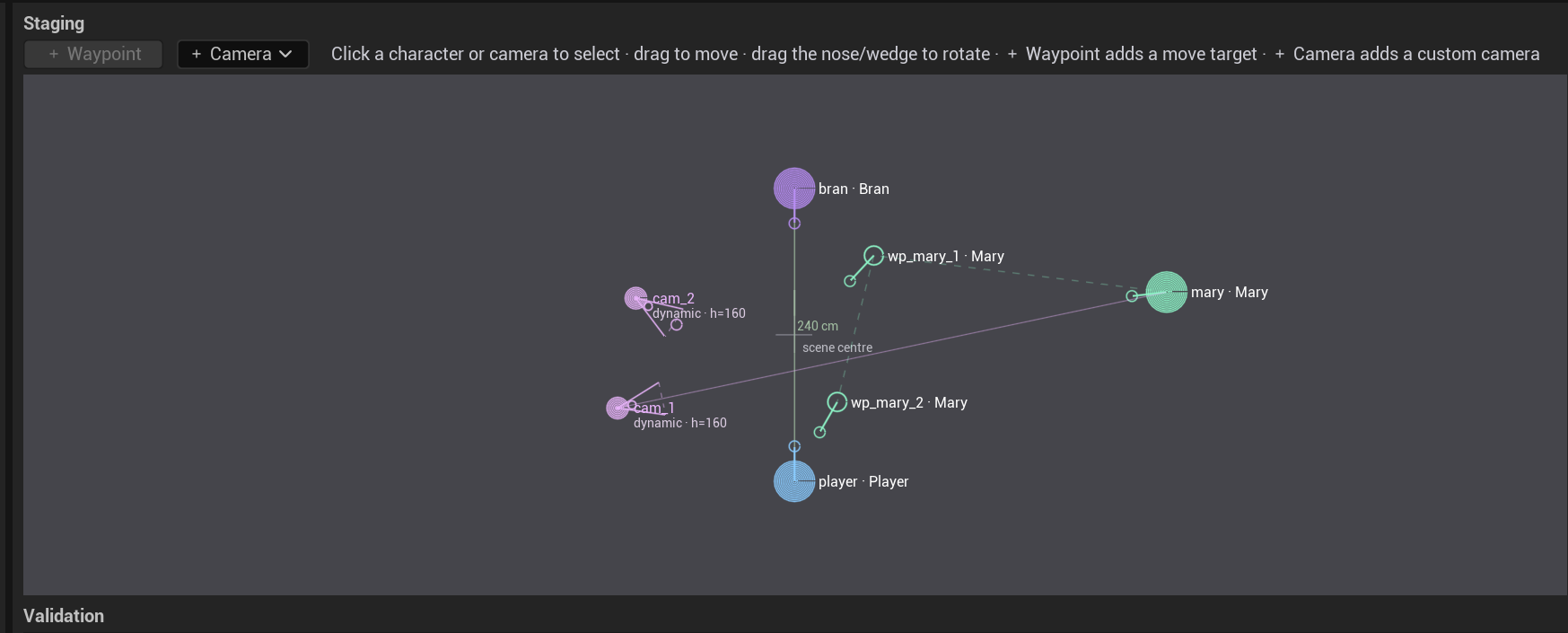
staging:
  cameras:
    - { id: cam_quick,  class: dynamic,         pos: [200, 0],    height: 200, look_at: anchor }
    - { id: cam_window, class: BP_MyCam_Voyeur, pos: [-320, 90],  height: 150, look_at: giver, fov: 28 }
    - { id: cam_dutch,  class: BP_MyCam_Dutch,  pos: [140, 200],  height: 120, yaw: -135, pitch: -8 }

# on a line:            shot: cam_window
# while choices unfold: camera: { choice_shot: cam_high }
How it fits together:
- The mark is an instance: a stable id, an anchor-relative position and an aim. Lines
reference the mark id via
shot:, never a class or coordinates. - The reusable optics (lens / DOF / filmback) live in a camera class, meaning any Blueprint
subclass of
QuestwrightDialogueSceneCamera. The built-inclass: dynamicneeds no Blueprint at all (default optics, combine withfov:for a quick custom angle). look_ataims at the anchor, a speaker or a mark, resolved at the moment of the cut, so a camera keeps its subject framed even after mid-dialogue moves.- The auto grammar never picks custom marks; they are explicit per-line (or
choice_shot) overrides only. - If a camera class fails to load at runtime, the line degrades to a wide fallback with a warning; the scene never breaks.
Design notes
Cameras cut instantly (SetViewTargetWithBlend with zero blend) and characters move with the
engine’s own AI locomotion. There is no Sequencer and no baked cinematics, which is why scenes
keep working when your level, characters or animations change. All references go to stable ids
(marks, lines, quests), never to coordinates or class internals.
Voice-over
Every dialogue line, bark and idle bark can carry voice-over. The build’s resolve-audio stage synthesizes (or imports) one audio asset per line, per language, and the facial stage then bakes lip-sync from that audio (see Facial animation).
Providers
Three interchangeable providers, selected in the Voice/Build tabs:
| Provider | What it is | Cost |
|---|---|---|
| Provided | You drop WAV files named after line ids under VO_Source/<culture>/ | — |
| OmniVoice | A local HTTP TTS server; one-click Setup & Launch from the Voice tab | free, local |
| ElevenLabs | Cloud TTS with your API key | your account |
Nothing is bundled and nothing phones home: OmniVoice runs on your machine, ElevenLabs uses your key, and with Provided WAVs the plugin works fully offline.
Assigning voices
Voices are assigned per speaker and per language on the Voice tab: the same character can have an English voice and a differently-cast Russian voice. Audition a single line, regenerate one line, or batch-synthesize everything missing.
Synthesis is idempotent: already-voiced lines are skipped on rebuild, changed lines are
re-synthesized, and audio for deleted lines is pruned. Generated sound assets are named after
the stable line ids (<Step>_<line>_<Speaker>), which is why ids must never be renumbered.
OmniVoice setup
OmniVoice is an open-source local TTS server: github.com/debpalash/OmniVoice-Studio. Clone or download that repository anywhere on your machine — the Studio takes it from there.
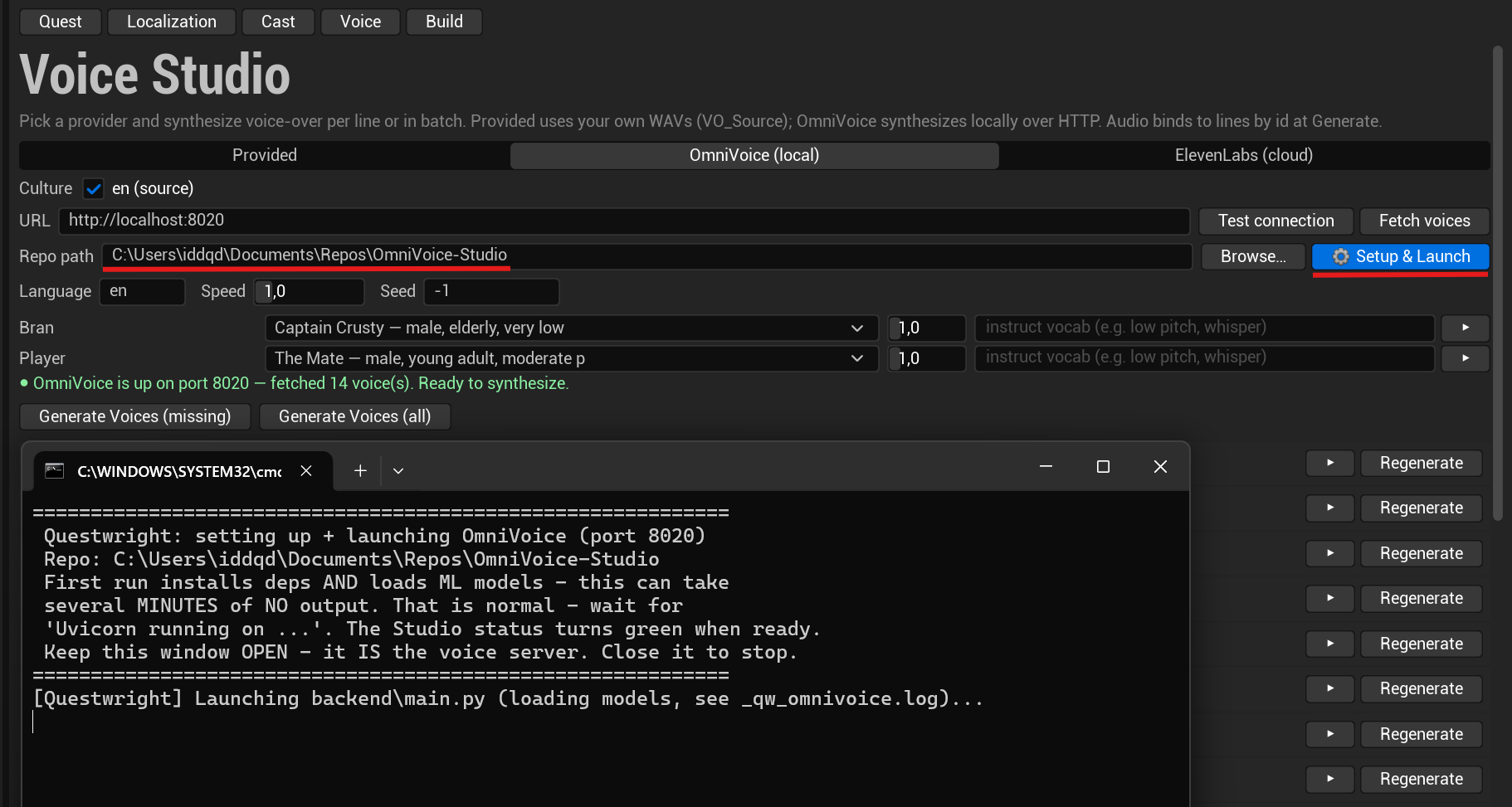
Point Repo path at the downloaded repository and press Setup & Launch (needed only if
you haven’t started the server yourself beforehand — with an already-running server just leave
the URL pointing at it). The button installs the dependencies and starts the server, handling
the console-environment pitfalls that break a hand-rolled launch; the first run also downloads
the ML models and can take several minutes with no output. Wait for the status line to turn
green. If the server won’t start, check _qw_omnivoice.log next to the server files.
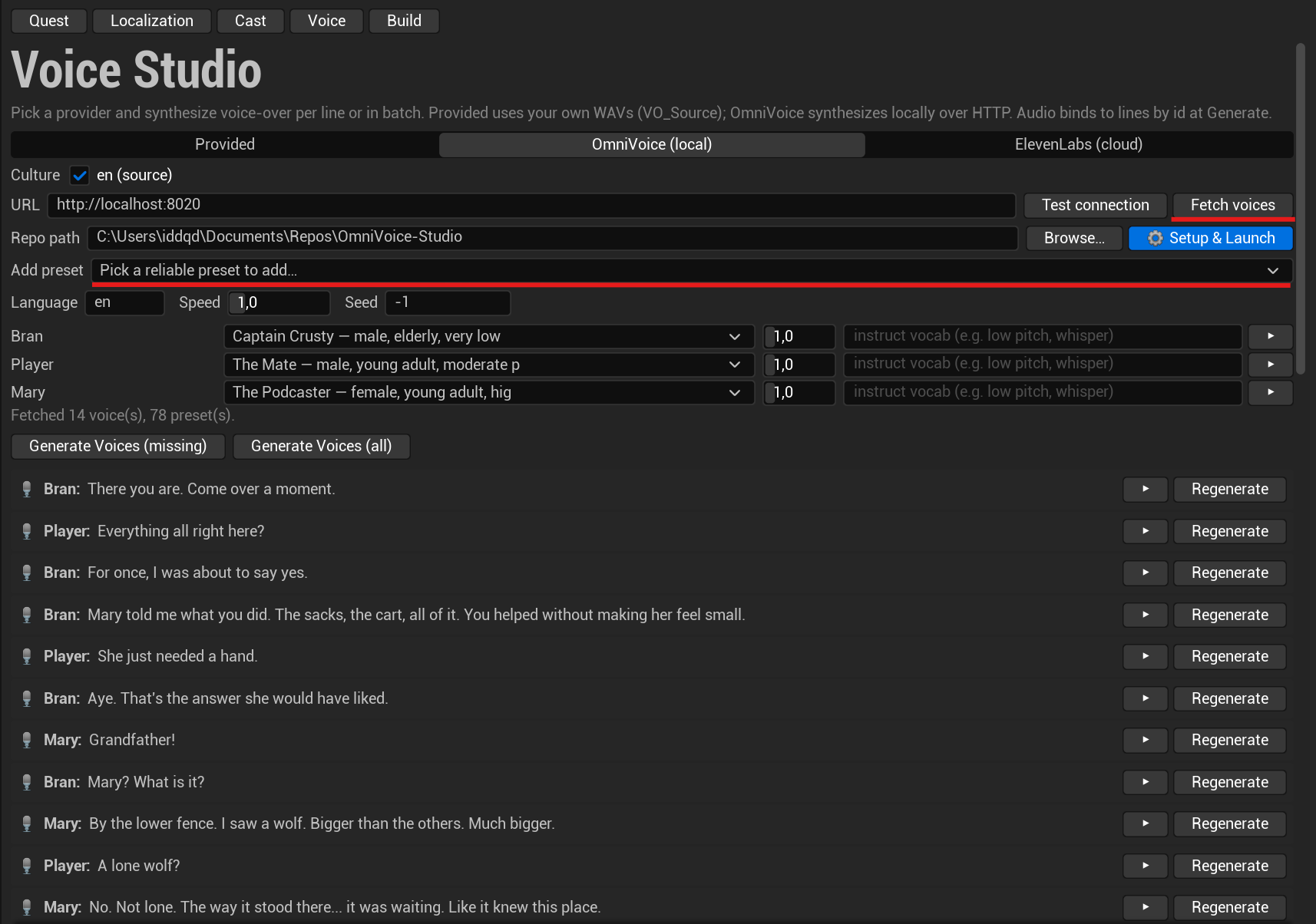
With the server up, press Fetch voices to pull every speaker the server currently offers into the per-speaker voice dropdowns.
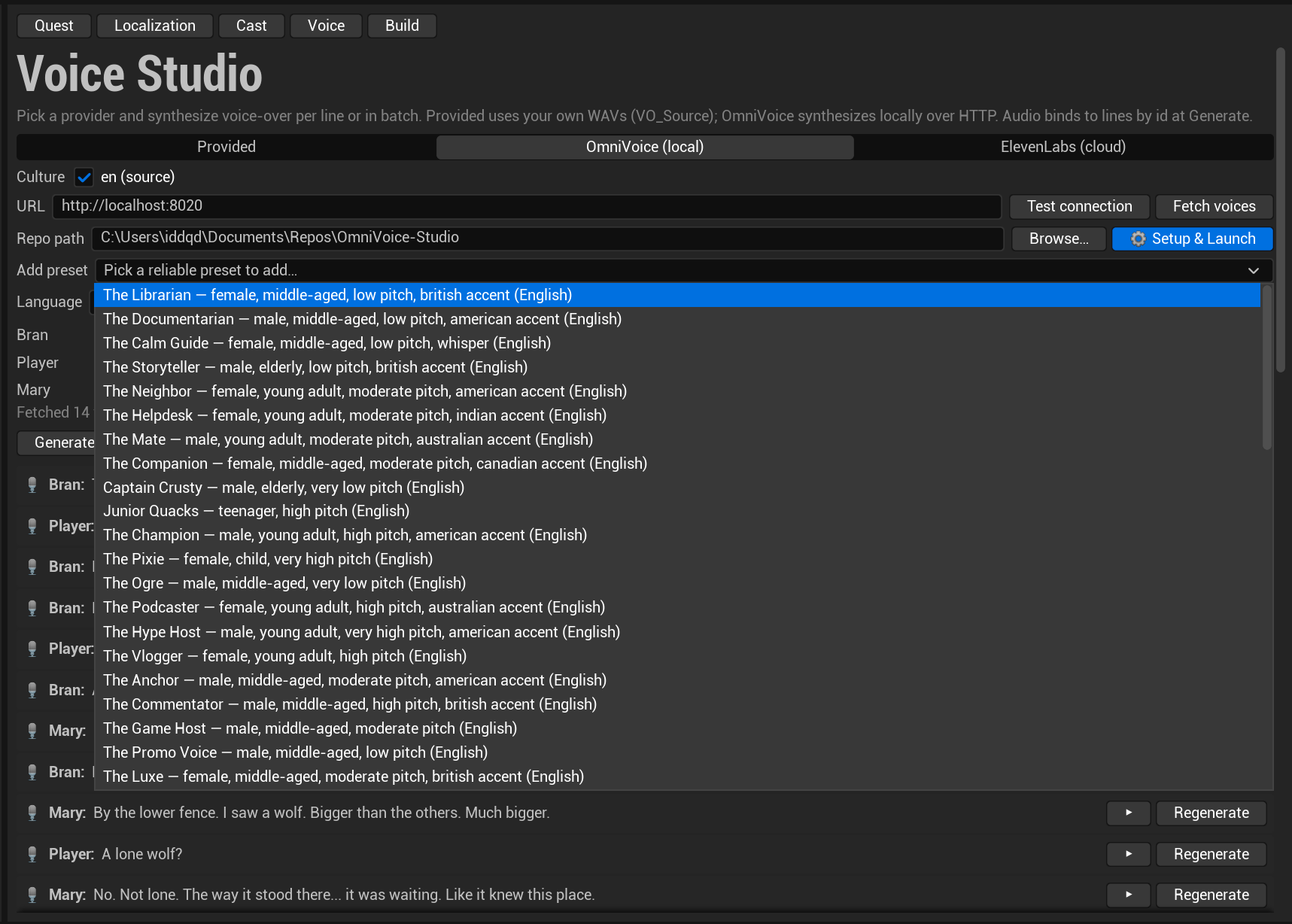
Need more variety? Open the Add preset dropdown, which lists the server’s curated voice presets, and pick the one you want — after the click it automatically appears as an option in your speakers’ voice dropdowns.
Where the configuration lives
The per-culture provider/model and per-speaker voice map are project settings: the Voice tab
edits Project Settings → Plugins → Questwright Studio (BuildCultures, VoiceByCulture),
stored in DefaultGame.ini so the whole team shares them. See the
Settings reference.
API keys are never stored in project files. Keys live in a per-user ini (git-ignored) with
an environment-variable fallback (QW_ELEVENLABS_KEY), which is safe for teams and CI.
Your own recordings
To use recorded VO, pick the Provided provider and drop WAVs named after line ids under
VO_Source/<culture>/. Mixing is fine: synthesize placeholders with OmniVoice during
production and swap in studio recordings later; the ids don’t change, so nothing else does.
Facial animation
Questwright needs no performance capture: facial animation is baked from the voice-over audio. If a line has VO, it gets lip-sync, whether the audio came from TTS or your own recordings.
The bake (build time)
The build’s facial stage runs MetaHuman Animator on each voiced line and bakes a lip-sync
UAnimSequence per line (FA_<LineId>), with the mood derived from the line’s emotion:
value. Like every stage, it is idempotent: unchanged lines are skipped, orphaned face
animations of deleted lines are pruned.
Requirements for this stage: the MetaHuman plugin enabled and DX12. Both are checked in the Build tab’s pre-flight; a facial toggle there lets you skip the stage entirely (fast iteration builds).
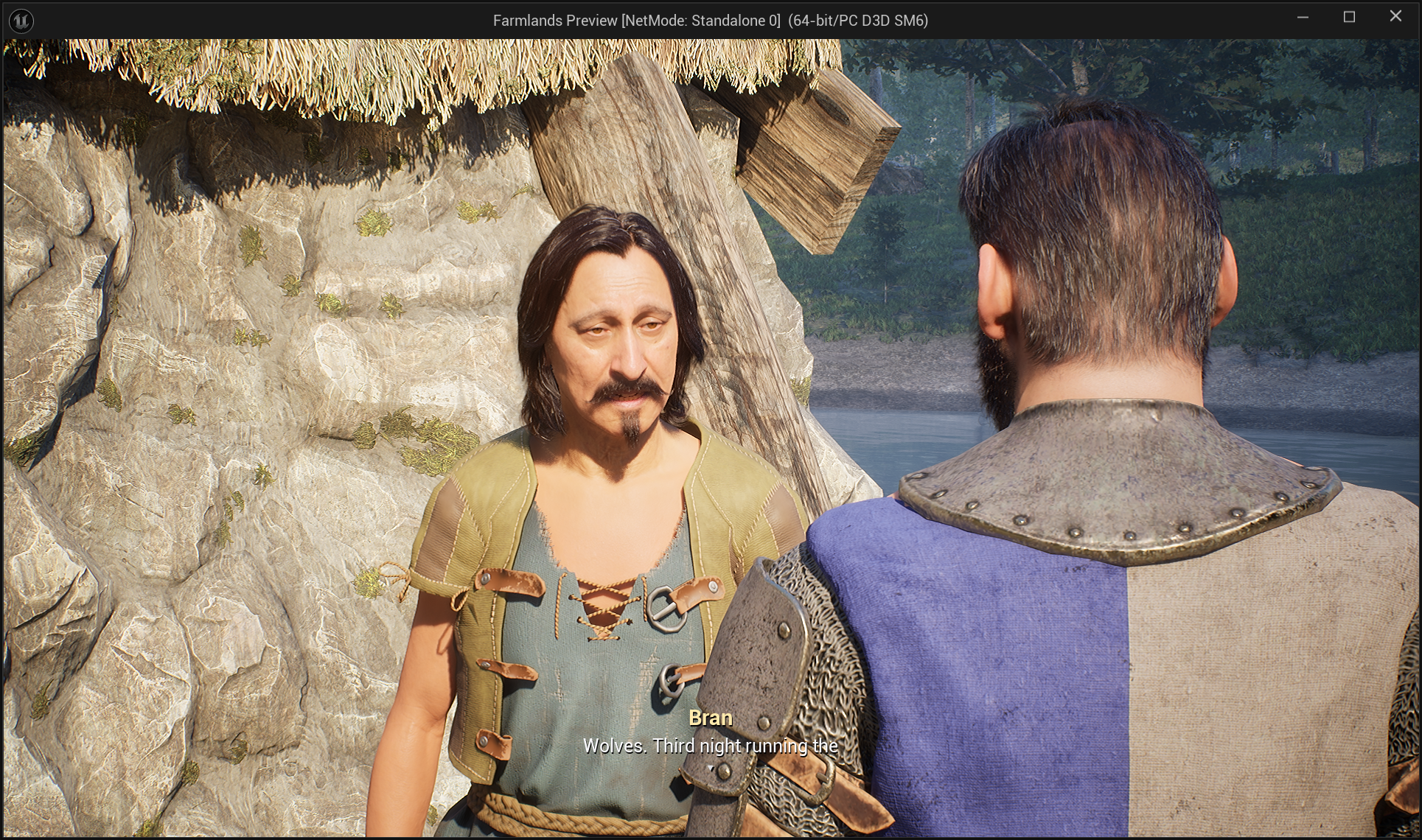
Runtime layering
At runtime the plugin layers the face in code on any MetaHuman; your character’s Animation Blueprints are never modified:
lip-sync slot → procedural blinking → additive emotion → eye gaze → the character's own RigLogicHead-turn toward the current speaker is applied through a runtime post-process Anim Blueprint on the body (the head bone is leader-posed from the body on MetaHumans), so characters naturally look at whoever is talking, including after mid-dialogue staging moves.
Fails soft, always
Every part of the face pipeline degrades gracefully instead of breaking the build or the scene:
| Situation | Result |
|---|---|
| No MetaHuman plugin / no DX12 | Face stage skipped with a warning; dialogue plays with a neutral face |
| Character is not a MetaHuman | Dialogue, staging and cameras work; no baked lip-sync |
| A face asset fails to load | Neutral face for that line, log warning |
The face and head-look Anim Blueprint classes are soft references resolved lazily at runtime, so the plugin loads fine in projects without any MetaHuman content at all.
Localized faces
Each language gets its own voice-over and its own lip-sync bake: a Russian line moves the mouth like Russian. Per-culture assets are swapped by the engine’s localization system in packaged builds (see Localization for the PIE caveat).
Localization
Localization is built into the pipeline, not bolted on: each language gets its own text, voice-over and lip-sync animation, produced by the same build.
How it’s organized
- Author quests in one source language (the quest’s
source_culture, e.g.en). - Translations are CSV sidecars (
Loc/<Quest>.<culture>.csv) keyed by the stable line ids. Untranslated keys fall back to the source text; the source file is never overwritten. - The cultures your project builds are listed in Project Settings → Plugins → Questwright Studio → Build Cultures (the Localization tab manages this for you).
The Localization tab
Add languages, see per-quest translation coverage, and machine-translate missing lines with your own Claude or OpenAI key. Machine results are marked “machine, needs review” so a human pass is easy to track. Keys are stored per-user (never in the repo), same as voice keys.
Building languages
The Build tab has a checkbox per culture. Each built language gets:
- its own String Tables (dialogue, choices, journal text);
- its own voice-over, using the per-language voice cast from the Voice tab;
- its own lip-sync bake from that language’s audio.
Per-culture assets live under /L10N/<culture>/ and are swapped by the engine’s own
localization system.
The one caveat: PIE vs packaged
Unreal applies per-culture asset swapping (audio, face animation) only in packaged/cooked builds; in PIE you always hear the source-culture voice. Text localization works everywhere, including PIE. This is engine behavior, not a setting to fix; test localized VO in a packaged build.
Dynamic text and localization
{PlayerName} and custom {Token} placeholders survive translation. Substitution happens at
display time via FText::Format, so translators can reorder tokens freely within a sentence.
Runtime integration
Questwright is engine-native and standalone; the integration surface is deliberately small. This page covers every touch point between the plugin and your game code (C++ or Blueprint).
The quest component
Quest progress is a fact about (player, quest). It lives on UQuestwrightQuestComponent,
auto-added to each PlayerState (never stored on NPCs). Resolve it from anywhere:
UQuestwrightQuestComponent* Comp = UQuestwrightQuestComponent::Get(SomeActor);
UQuestwrightQuestComponent* Local = UQuestwrightQuestComponent::GetLocalPlayer(World);
Crediting objectives
When something quest-relevant happens, such as a kill or a pickup, make one call
(BlueprintCallable, server-authoritative, idempotent per EventSourceId):
Comp->ReportObjectiveEvent(Instigator, Type, MatchTags, LocationTags, EventSourceId);Every active objective whose type and (hierarchically matched) target/location tags fit
the event increments. Pass the killer as Instigator and only that player is credited; pass
none and all players are (shared-world fallback). For story beats, a trigger or dialogue can
instead call:
Comp->CompleteObjective(QuestId, ObjectiveId);UI out of the box
Add UQuestwrightQuestHUDComponent to your PlayerController and you get the on-screen
objective tracker, the quest journal (bind a key to ToggleJournal) and quest-state toasts.
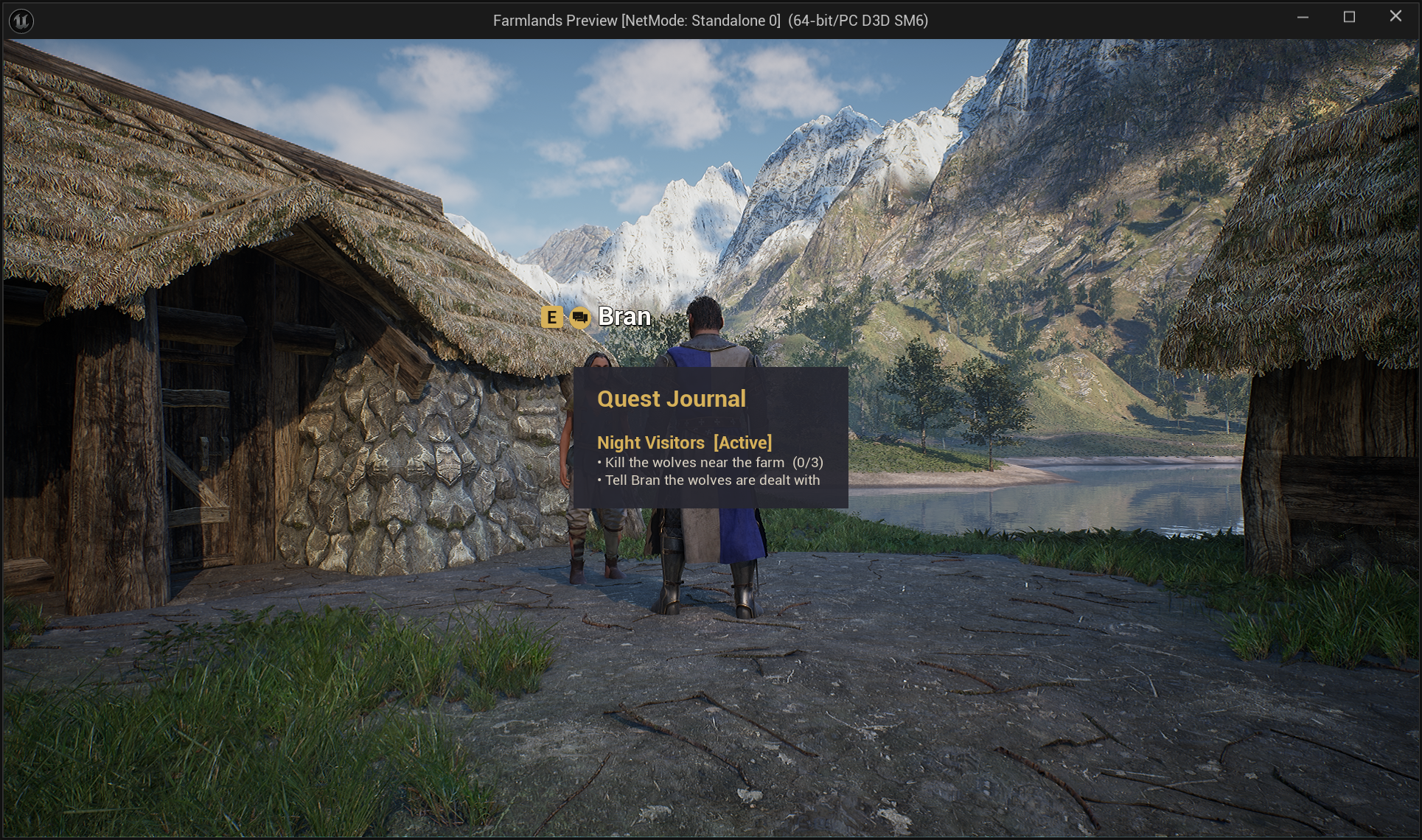
All widgets are C++-built and replaceable with your own subclasses, or you can skip them entirely and drive a custom UI from the delegates below.
Provider seams
Instead of shipping its own inventory or stats, Questwright talks to yours through interfaces with working defaults:
| Seam | Interface | Implementable in |
|---|---|---|
| Inventory (item conditions, item rewards) | IQuestwrightInventoryProvider | Blueprint or C++ |
| Stats / attributes (attribute conditions) | IQuestwrightStatProvider | Blueprint or C++ |
| Saving backend | IQuestwrightSaveProvider | C++ |
| Voice synthesis | IQuestwrightVoiceProvider | C++ (editor) |
| Facial receiver, smart objects | provider interfaces | C++ |
Quest state as GameplayTags
Call SetTagTargetActor(Pawn) and the component projects Questwright.Quest.State.* tags onto
an AbilitySystemComponent, so quest state becomes usable in ability activation requirements and
any tag-based condition system you already have.
Delegates
For custom UI or game reactions:
OnQuestStateChanged: accepted / completed / declined / failed;OnObjectivesChanged: a counter moved or an objective completed;OnJournalDirty: anything the journal displays changed;OnProgressLoaded: stored progress was applied (see Saving & multiplayer).
Dynamic text tokens
{PlayerName} and custom {Token} placeholders in dialogue and journal text are substituted
at display time by a GameInstance subsystem:
UQuestwrightTextVarsSubsystem* Vars = GameInstance->GetSubsystem<UQuestwrightTextVarsSubsystem>();
Vars->SetPlayerName(TEXT("Ellie"));
Vars->SetTextVar(TEXT("Faction"), TEXT("Rangers"));   // used as {Faction}
Both setters are BlueprintCallable. Substitution uses FText::Format, so it is
localization-safe.
Dialogue → quest bridge
Dialogue scenes mutate quest state through their on_end effects (quest: accept / turnin / decline / fail, set: flags, grant_tag, grant_quest), so you don’t write glue code between
conversations and quests. See
Objectives & progression.
Saving & multiplayer
Quest progress persists out of the box: in single player you don’t write a line of code, and the same model scales up to dedicated servers with one interface.
Autosave / autoload
Each player’s quest component loads stored progress when it starts and saves after changes (accept, objective credit, step advance, flags, completion). Saves are coalesced, so a burst of changes in one frame costs one write. A final save runs on quit, map travel and logout, and autoload restores progress across level changes automatically.
The policy is tunable in Project Settings → Plugins → Questwright Quests (details in the Settings reference):
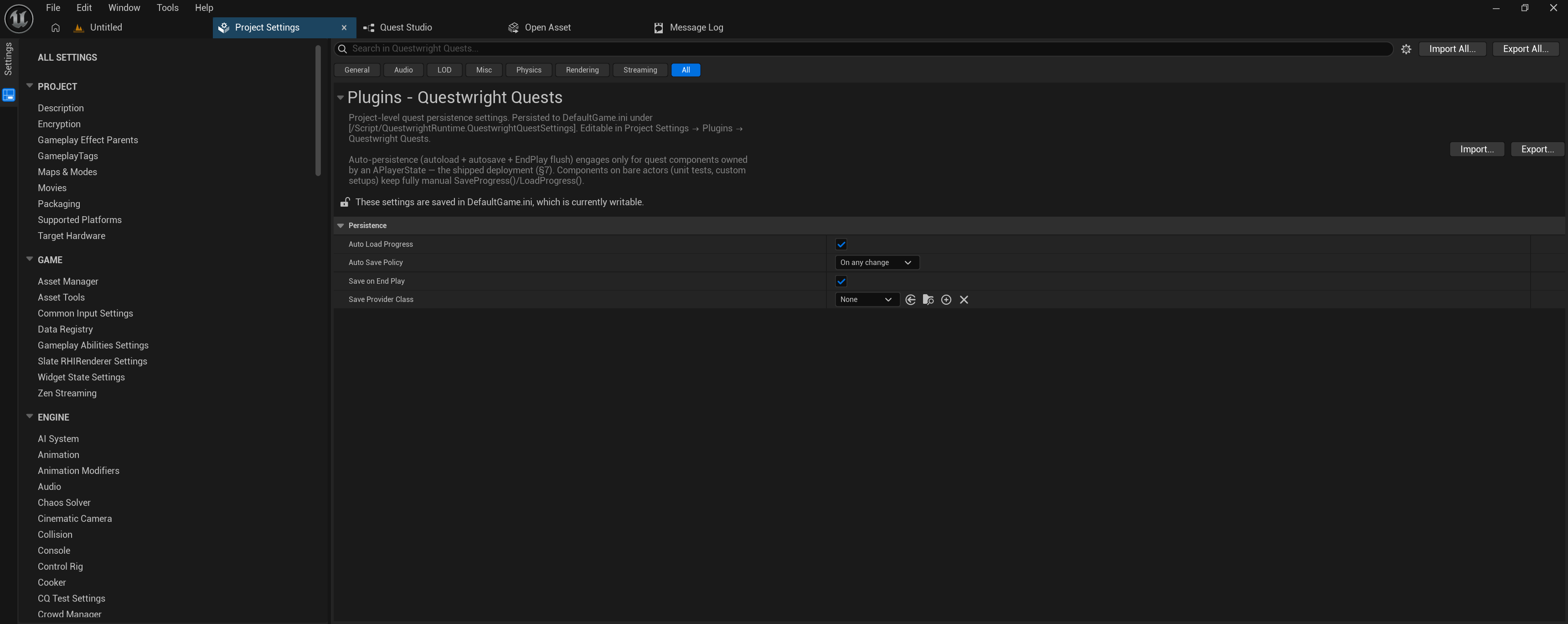
Auto-persistence engages for components owned by a PlayerState (the shipped deployment);
components placed on bare actors keep fully manual SaveProgress() / LoadProgress().
What is stored
Only the per-player progress records: state, current step, objective counters, flags, timestamps. Quest content lives in the compiled assets; an active dialogue scene is presentation and is never saved. Saved progress survives content updates: a record whose stored step no longer exists falls back to the quest’s first step (with a log warning), and records of quests unknown to the current build are kept untouched.
The three tiers
| Deployment | What you do |
|---|---|
| Single player | Nothing. One USaveGame slot (Questwright_Quests). |
| Listen-server co-op | Nothing. Each player gets an isolated slot keyed by their online id (Questwright_Quests_<id>). |
| Dedicated server / own backend | Implement one C++ interface (below). |
The backend seam is IQuestwrightSaveProvider:
class UMyDbSaveProvider : public UObject, public IQuestwrightSaveProvider
{
    // PlayerKey is the player's UniqueNetId string; use it as your database key.
    virtual bool SaveQuestRecords(const FString& PlayerKey,
                                  const TArray<FQuestwrightQuestRecord>& Records) override;
    virtual bool LoadQuestRecords(const FString& PlayerKey,
                                  TArray<FQuestwrightQuestRecord>& Out) override;
    // Optional non-blocking variant for REST/database fetches:
    // virtual void LoadQuestRecordsAsync(...) override;
};
Register it as SaveProviderClass in the settings page, or inject an instance with
SetSaveProvider() on login. Everything runs server-side; clients receive loaded progress
through normal replication.
Manual control
For a save-station game: set AutoSavePolicy to Manual and call SaveProgress() /
LoadProgress() yourself. OnProgressLoaded fires after stored progress is applied.
Multiplayer model
Questwright works in standalone, listen server and dedicated server, with a strict server-authoritative split:
- Progress is per player, on a component on the PlayerState, replicated owner-only, so players never see each other’s journal internals.
- All mutations are server-authoritative. Client calls (accepting a quest from the UI, reporting an event) route through Server RPCs automatically; the API looks the same on either side.
- Kill credit goes to the instigating player when your death code passes the killer; otherwise all players are credited (shared-world fallback).
- Presentation never runs on the server. Cameras, faces, dialogue UI and look-at run only on the owning client; a dedicated server executes none of it.
- Components are auto-provisioned on login, so late joiners get theirs automatically.
Settings reference
Questwright registers three pages under Project Settings → Plugins. All of them are
project-level (DefaultGame.ini), shared with your team through version control, with one
deliberate exception: API keys are never stored here (they live in a per-user, git-ignored
ini with an environment-variable fallback).
Questwright Quests
Persistence of quest progress. Config section:
[/Script/QuestwrightRuntime.QuestwrightQuestSettings].
| Setting | Default | What it does |
|---|---|---|
Auto Load Progress (bAutoLoadProgress) | On | Loads stored progress when a player’s quest component starts (server-side). Also restores progress across map travel, where the PlayerState is recreated. |
Auto Save Policy (AutoSavePolicy) | On any change | When progress is autosaved. Manual means never (you call SaveProgress()); On quest state change saves on lifecycle transitions only (accept / complete / decline / fail); On any change also saves on step advances, objective credits and flags. Saves are coalesced: a burst of same-frame changes costs one write. |
Save On End Play (bSaveOnEndPlay) | On | A belt-and-braces flush when the component ends play (quit / travel / logout). Disable together with Manual for fully manual persistence. |
Save Provider Class (SaveProviderClass) | None | Storage backend (C++ class implementing IQuestwrightSaveProvider). None = the built-in USaveGame-slot provider. See Saving & multiplayer. |
Auto-persistence engages only for quest components owned by a PlayerState (the shipped deployment). Components on bare actors keep fully manual save/load.
Questwright Dialogue
Runtime dialogue pacing. Config section:
[/Script/QuestwrightRuntime.QuestwrightDialogueSettings].
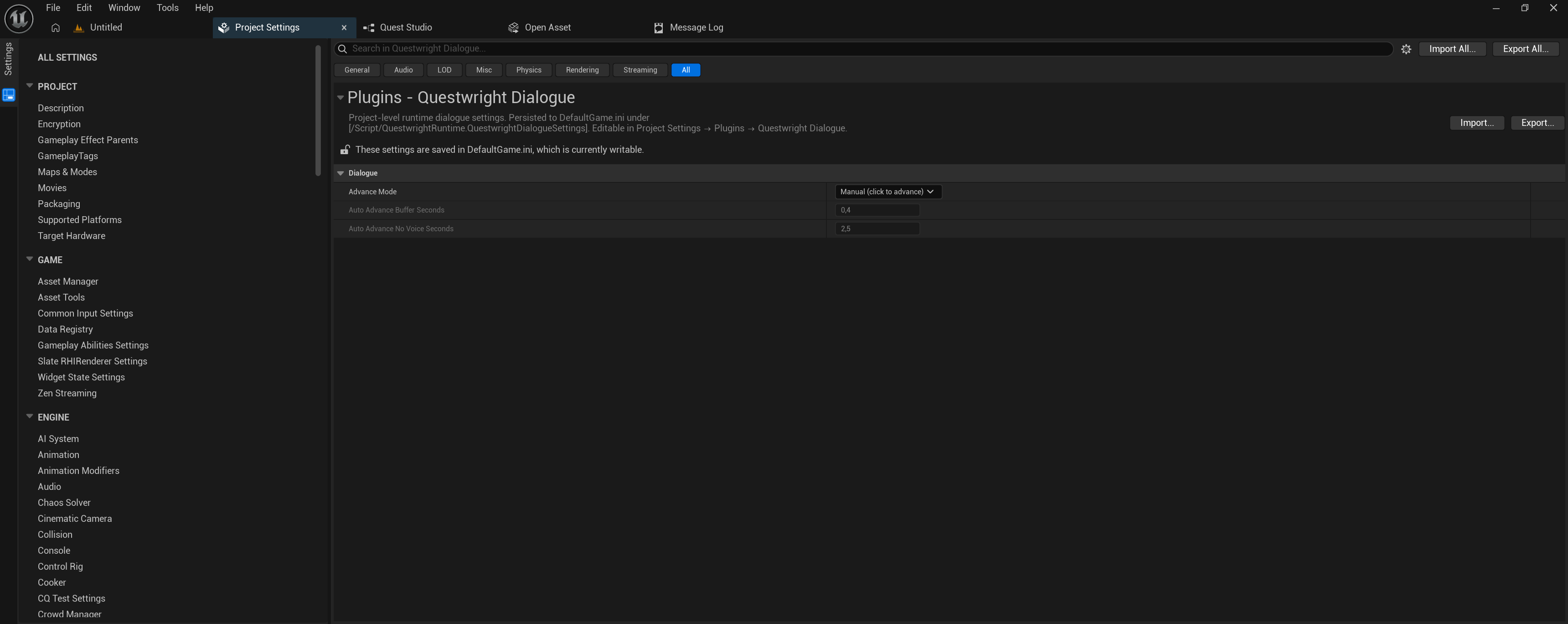
| Setting | Default | What it does |
|---|---|---|
Advance Mode (AdvanceMode) | Manual | How lines advance. Manual waits for a click after every line (reader-paced). Auto lets lines play and advance on their own after the voice-over; only choices wait for input (cinematic pacing). |
Auto Advance Buffer Seconds (AutoAdvanceBufferSeconds) | 0.4 | Auto mode: extra seconds held after a line’s voice-over before advancing, a small breath between lines. |
Auto Advance No Voice Seconds (AutoAdvanceNoVoiceSeconds) | 2.5 | Auto mode: how long a line with no voice-over stays on screen so the text is still readable. |
Both auto-mode values are only editable when Advance Mode is set to Auto.
Questwright Studio
Localization cultures and the per-culture voice configuration, normally edited through the
Localization and Voice tabs rather than by hand. Config section:
[/Script/QuestwrightStudio.QuestwrightStudioSettings].
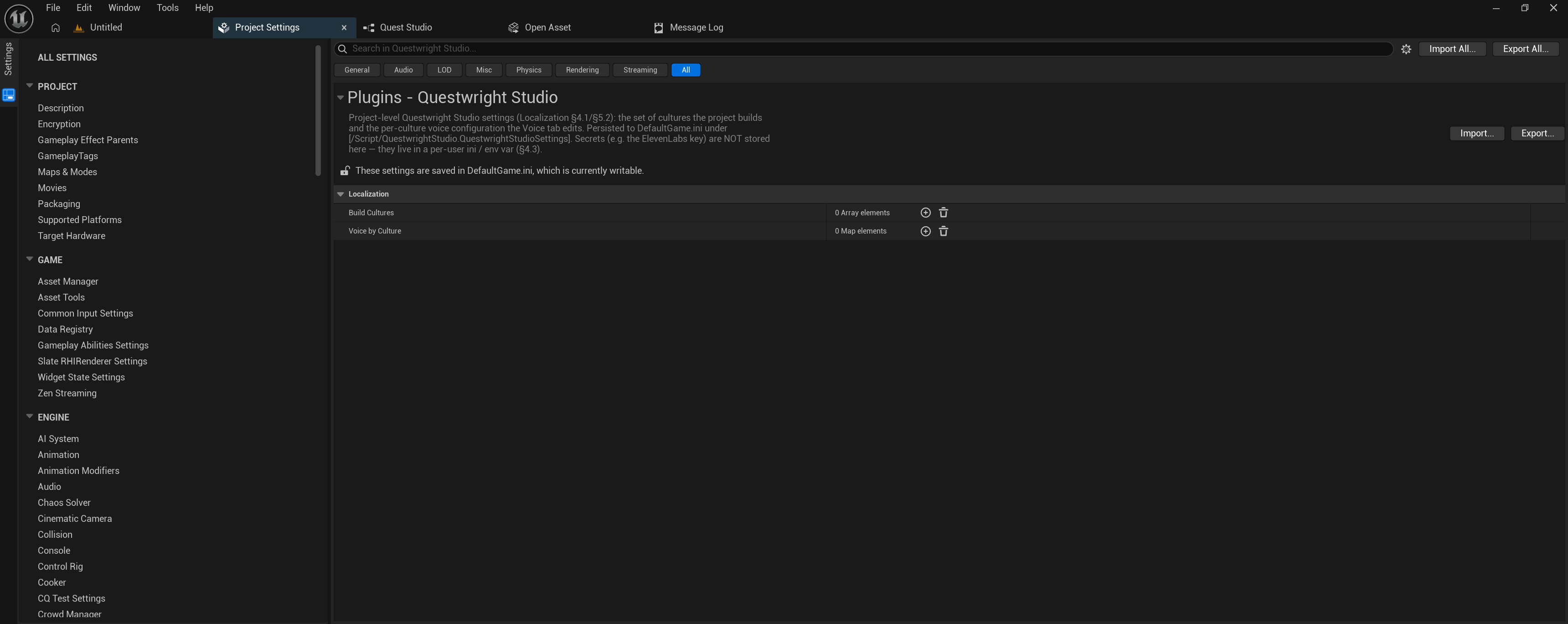
| Setting | What it does |
|---|---|
Build Cultures (BuildCultures) | The set of cultures the project builds (e.g. en, ru). The first entry is the source-culture fallback when a quest doesn’t declare its own source_culture. Empty = single-culture authoring. |
Voice By Culture (VoiceByCulture) | Per-culture voice configuration, keyed by culture code. Each entry holds the TTS Provider (e.g. OmniVoice, ElevenLabs), a provider Model, an Output format hint (e.g. wav_24000) and the per-speaker voice assignments (speaker key → provider voice id). |
What is not in Project Settings
| Value | Where it lives |
|---|---|
| ElevenLabs / Claude / OpenAI API keys | Per-user ini (git-ignored) + env fallback, e.g. QW_ELEVENLABS_KEY |
| Quest content, chains, priorities | The .quest.yaml files themselves; there is no hidden manifest |
| Generated assets | Your project’s /Game/Questwright/Generated/ folder |
Troubleshooting & FAQ
Troubleshooting
| Symptom | Cause / fix |
|---|---|
| Objective never counts | The target/location GameplayTag isn’t registered in the project; see Objectives & progression. This is the #1 issue. |
| Dialogue plays but no lip-sync | MetaHuman plugin not enabled, or no DX12, so the face stage degrades to a neutral face by design. Fix the requirement and re-run Build. |
| A custom camera doesn’t cut | The line’s shot: must name a declared staging.cameras id. If the camera class fails to load, the scene falls back to a wide shot with a warning. |
| OmniVoice won’t start | Use the Voice tab’s Setup & Launch button (it handles console/venv environment pitfalls); check _qw_omnivoice.log next to the server. |
| RUN is greyed out | The pre-flight checklist has red items; each has a Fix → shortcut to the right tab. |
| Voices/faces in the wrong language in PIE | Expected: per-culture asset swap is cooked-only, while text localization works everywhere. See Localization. |
| Quest changed but assets stale | The Library marks it “changed”; just RUN again. Generation is idempotent and prunes orphaned voice/face assets of removed lines. |
| Two participants end up on one spot | Two marks (or a mid-dialogue move) put two people on the same mark at the same moment. The validator and the staging canvas both flag the conflicting line. |
FAQ
Do I need MetaHumans?
No. Dialogue, quests, staging, cameras, the journal and saving work with any skeletal-mesh character. The MetaHuman pipeline only powers baked lip-sync and the layered facial animation; without it the build degrades gracefully to a neutral face.
Do I need to write C++?
No. Setup is one click, objectives are credited with one BlueprintCallable node, and the
inventory/stats seams are Blueprint-implementable. C++ is required only for a custom save
backend (IQuestwrightSaveProvider).
Does it work in multiplayer / co-op?
Yes: standalone, listen server and dedicated server. Progress is per-player, replication is owner-only, all mutations are server-authoritative, and co-op saving works without code. See Saving & multiplayer.
Can quests be generated procedurally at runtime?
Not at runtime. A quest is authored content compiled into assets by the Studio (or the compile
commandlet in CI). What you can automate is authoring: .quest.yaml is plain text, so
scripts or an AI assistant can generate quest files that you then build normally.
Can I import dialogue from external tools (articy, Twine, spreadsheets)?
There is no built-in importer, but the target format is an open, documented text file; the authoring reference specifies every field. Converting from any structured source is a small script, and pasting the reference plus your source text into an AI assistant also works well.
Can I restyle or replace the UI?
Yes. All widgets (dialogue, choices, journal, tracker, toasts, barks) are C++-built with
Blueprint-subclassable classes, and the OnQuestStateChanged / OnObjectivesChanged /
OnJournalDirty delegates let you drive an entirely custom UI instead.
Does it depend on other paid plugins or online services?
No. The plugin is engine-native and standalone. Voice synthesis and machine translation are optional and use your own services/keys; with your own WAV files it runs fully offline.
Which engine versions are supported?
Unreal Engine 5.6 – 5.8. The compatibility layer is compile-time checked, so a version mismatch fails loudly at build time rather than silently at runtime.
My game is stylized / not photoreal. Is the cinematic camera mandatory?
Shots are authored per line, so you control how much “cinema” a scene gets, from full custom camera marks down to plain conversations, and the UI widgets are yours to restyle for genre.
Still stuck?
Write to support@phoenixtools.dev with your engine version, the quest file if possible, and the relevant Output Log lines.